> ## Documentation Index
> Fetch the complete documentation index at: https://www.vozo.ai/docs/llms.txt
> Use this file to discover all available pages before exploring further.
# Auto Align Audio & Video
> Automatically align video and audio by adjusting speed segment by segment to fix timing mismatches after dubbing.
## What is Auto Align Audio & Video
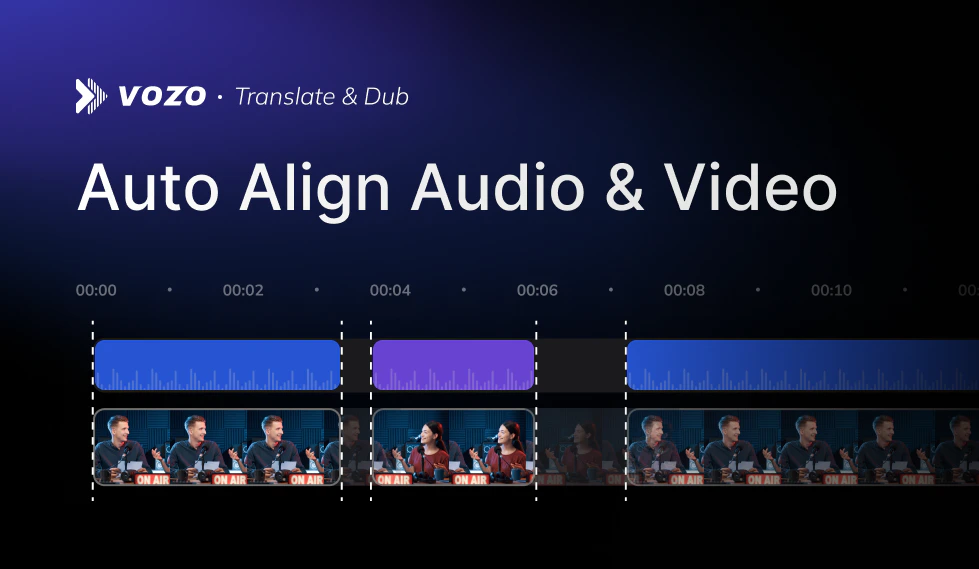
Auto Align Audio & Video automatically adjusts both video and audio speed segment by segment to keep them aligned. This solves common mismatch issues caused by different speech lengths across languages after dubbing.
For example, when translated speech becomes longer or shorter than the original, this feature ensures the video stays synchronized with the new audio.
 ## When to Use
Use this feature when:
* The dubbed audio does not match the original video timing
* There are noticeable delays or overlaps between speech and visuals
* You want a fully synchronized video without manual adjustment
## How to Apply
You can use this feature in two ways:
### 1. Enable after upload
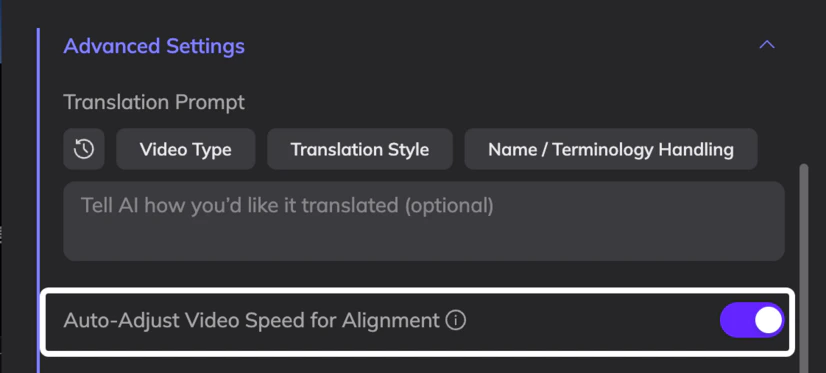
After uploading your video, go to **Advanced Settings** and turn on **Auto-Adjust Video Speed for Alignment**.
## When to Use
Use this feature when:
* The dubbed audio does not match the original video timing
* There are noticeable delays or overlaps between speech and visuals
* You want a fully synchronized video without manual adjustment
## How to Apply
You can use this feature in two ways:
### 1. Enable after upload
After uploading your video, go to **Advanced Settings** and turn on **Auto-Adjust Video Speed for Alignment**.
 ### 2. Apply in editor
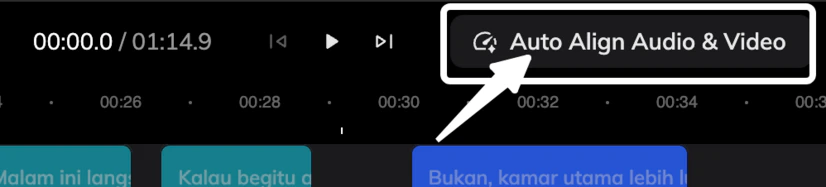
After completing dubbing edits, click **Auto Align Audio & Video** on the timeline to automatically align the video and audio.
Processing may take some time. For best results, run alignment after you have finished all dubbing edits.
If you are not satisfied with the result, you can undo the alignment using your system undo shortcut (Ctrl + Z or Command + Z). Make sure to stay on the current editor page — do not refresh or leave, otherwise the undo will no longer be available.
### 2. Apply in editor
After completing dubbing edits, click **Auto Align Audio & Video** on the timeline to automatically align the video and audio.
Processing may take some time. For best results, run alignment after you have finished all dubbing edits.
If you are not satisfied with the result, you can undo the alignment using your system undo shortcut (Ctrl + Z or Command + Z). Make sure to stay on the current editor page — do not refresh or leave, otherwise the undo will no longer be available.
 ## What Happens After Alignment
Video and audio are sped up or slowed down segment by segment to ensure perfect alignment between visuals and audio.
The overall duration of the video and audio will change after alignment. Do not use this feature if you plan to export the audio for use with the original video, such as multi-track audio on platforms like YouTube. The timing will no longer match the original footage.
## What Happens After Alignment
Video and audio are sped up or slowed down segment by segment to ensure perfect alignment between visuals and audio.
The overall duration of the video and audio will change after alignment. Do not use this feature if you plan to export the audio for use with the original video, such as multi-track audio on platforms like YouTube. The timing will no longer match the original footage.