> ## Documentation Index
> Fetch the complete documentation index at: https://www.vozo.ai/docs/llms.txt
> Use this file to discover all available pages before exploring further.
# Change Voice
> Learn how to change the voice for a speaker in your translated video.
Vozo automatically clones the original voice of each speaker in your video. If you prefer not to use the original voice, you can easily switch to another one using the **Change Voice** feature.
Click on a target sentence to activate the toolbar, then select **Change Voice** to open the dialog box.
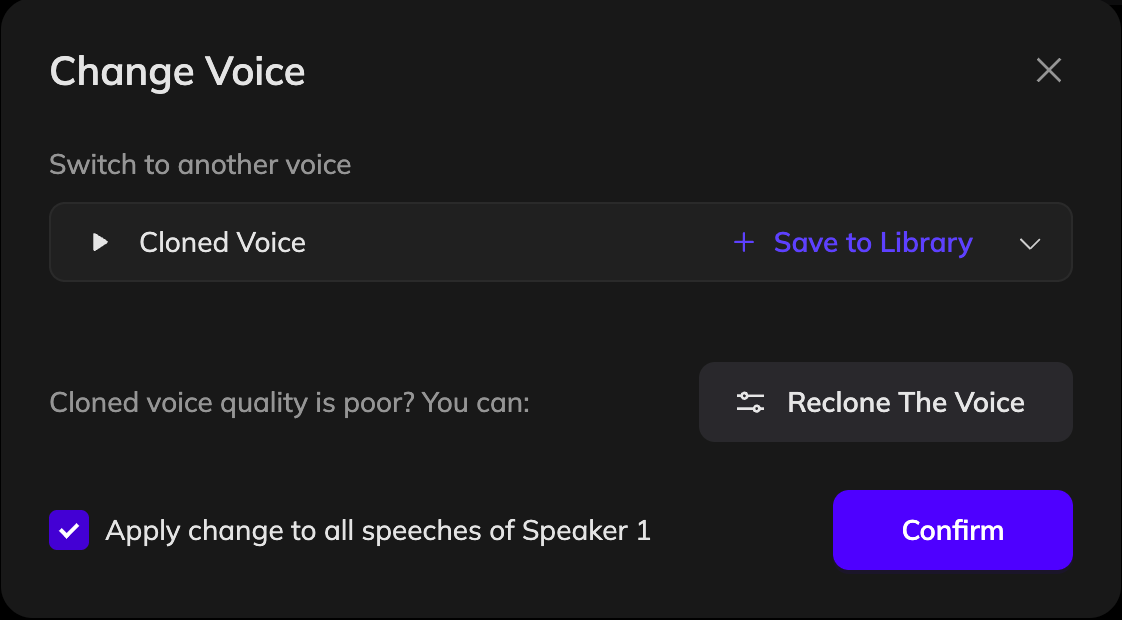 In the dialog, open the dropdown menu to choose a voice. Click **Choose More from Library** to browse additional options.
You can upload an audio file or record a sample to clone a new voice and save it to your voice library.
Once you've selected a voice, click **Confirm**.
To update only the current sentence, uncheck “Apply change to all speeches of \[Speaker]”. To apply the voice to all lines from the same speaker, leave it checked.
Click **Generate Speech** to regenerate the audio with the new voice.
If the wrong voice is used because the speaker tag is incorrect, you don’t need to use **Change Voice**. Instead, click the speaker tag, select the correct speaker, and click **Generate Speech** to fix it.
In the dialog, open the dropdown menu to choose a voice. Click **Choose More from Library** to browse additional options.
You can upload an audio file or record a sample to clone a new voice and save it to your voice library.
Once you've selected a voice, click **Confirm**.
To update only the current sentence, uncheck “Apply change to all speeches of \[Speaker]”. To apply the voice to all lines from the same speaker, leave it checked.
Click **Generate Speech** to regenerate the audio with the new voice.
If the wrong voice is used because the speaker tag is incorrect, you don’t need to use **Change Voice**. Instead, click the speaker tag, select the correct speaker, and click **Generate Speech** to fix it.