> ## Documentation Index
> Fetch the complete documentation index at: https://www.vozo.ai/docs/llms.txt
> Use this file to discover all available pages before exploring further.
# Speed, Volume, Pitch
> Customize speed, volume, and pitch of translated audio clips.
You can fine-tune the **speed**, **volume**, and **pitch** of translated audio to better match the tone and pacing of your video.
Locate the timeline at the bottom of the page, then click on the translated audio clip you want to adjust.
Click the **Speed/Volume/Pitch** button at the top-left of the timeline.\
In the popover, adjust the settings as needed.
To apply the changes to all speeches by the same speaker, check **Apply change to all speeches of \[Speaker]**.
Once you close the popover, the changes will take effect automatically.
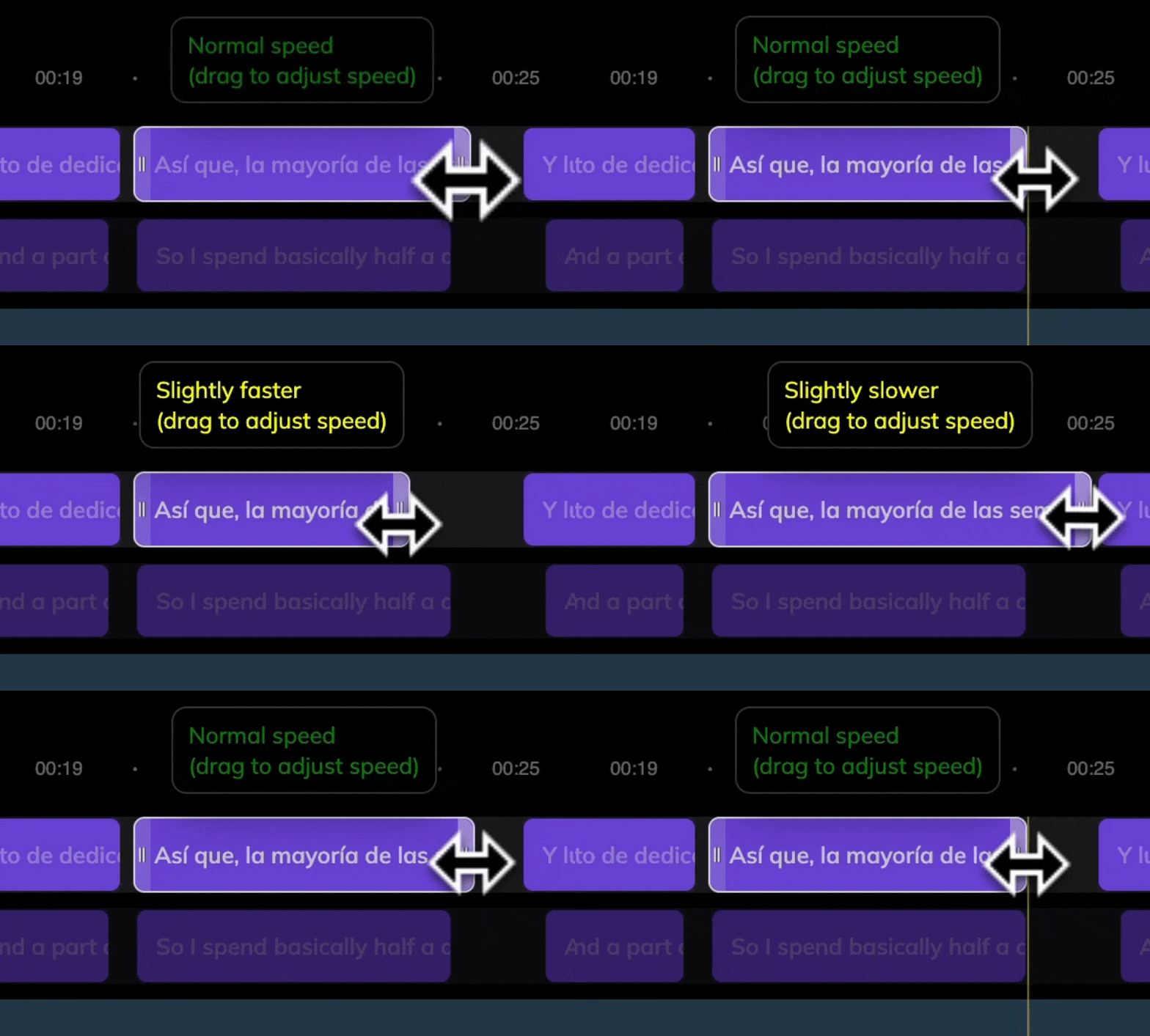
You can also stretch or shrink the audio clip directly in the timeline to adjust its speed.
 These adjustments only apply to translated audio clips. Original audio cannot be modified.