

Export Text
You can export a file containing the original text, timestamps, and translated text. There are two ways to download the file:-
Click Export, then select Original & Translated Text in the popover menu.
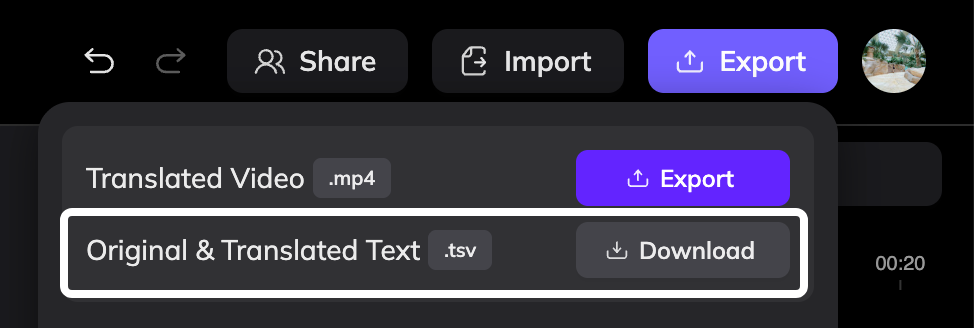
- Click Import, then download the TSV file from the import dialog.
- Original text
- Start and end timestamps
- Translated text
Edit the File
After reviewing or editing the translations, save the file as TSV or TXT format.Keep the file structure unchanged. Modifying the structure may cause the import to fail.
Import the File
1
Open the Import Dialog
In the editor, click Import in the top-right corner.
2
Upload the File
Upload the edited TSV or TXT file.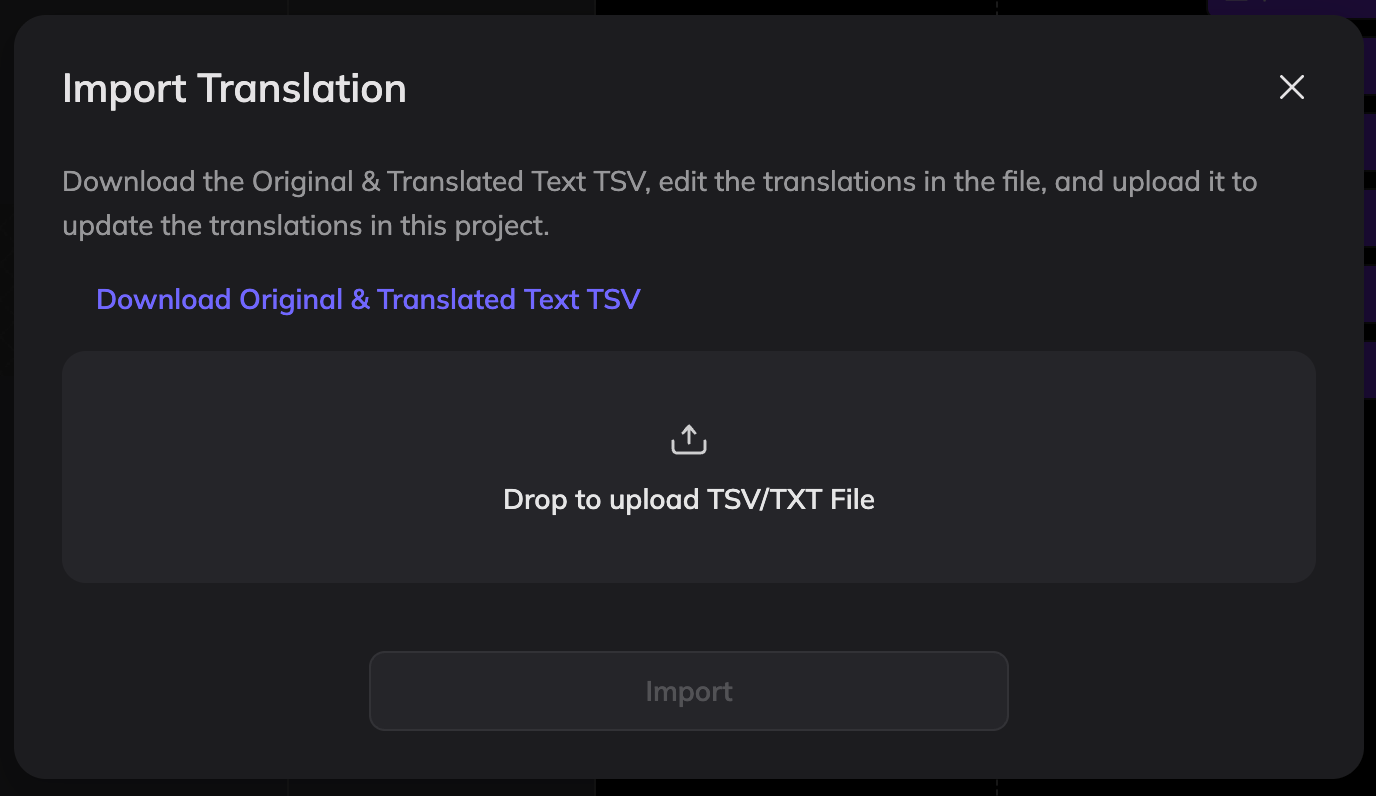
3
Update the Project
The system will update the project based on the file content.
Import Requirements
Timestamp Format
The end time must be later than the start time, and the timestamp format must remain valid.Project Status Restrictions
Importing is not allowed in the following situations:- Some segments are processing Retranslating
- Some segments are in Pending Regenerate status
How the System Updates Your Project
After importing the file, the editor will update the project according to these rules:- Update translations
If the translated text is modified, the system updates the translation. - Update original text
If the original text is modified, the system updates the original text. - Update timestamps
If the timestamps are modified, the system updates the segment timing. - Add new entries
If new rows are added, the system creates new text segments using the default style. You can adjust the style in the editor. - Deleted rows
If rows are removed from the file, the corresponding text will not be deleted automatically. To remove text, delete it manually in the editor.