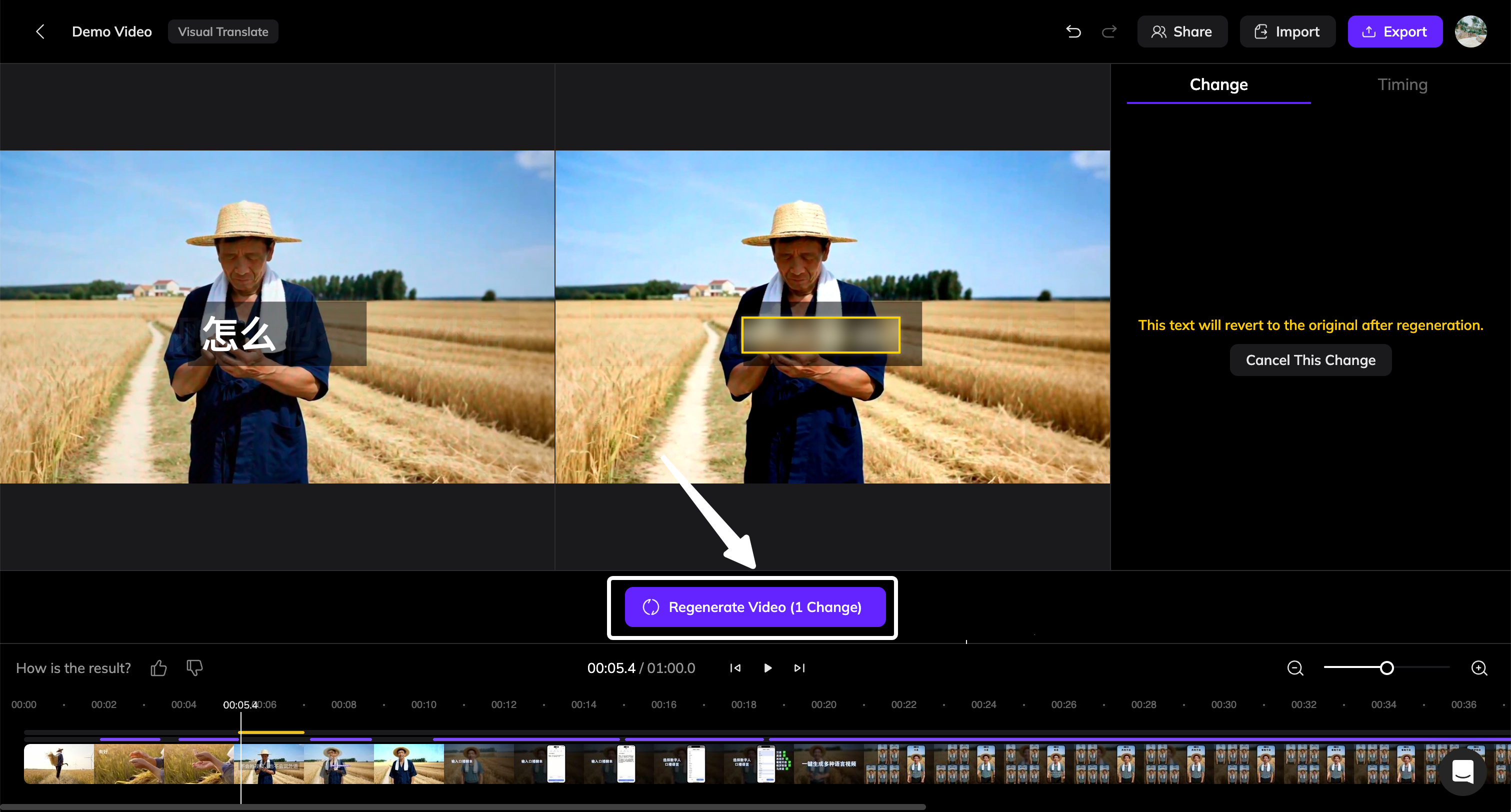
When to Use This Feature
During the Visual Translate process, some text may be translated even though it should remain unchanged. The Revert to Original feature allows you to revert those areas back to the original text from the source video.How to Revert Text to Original
1
Select the Text
In the translated video canvas, click the text that should be reverted.
2
Click the Revert to Original Button
In the right panel under the Text tab, click the Revert to Original button.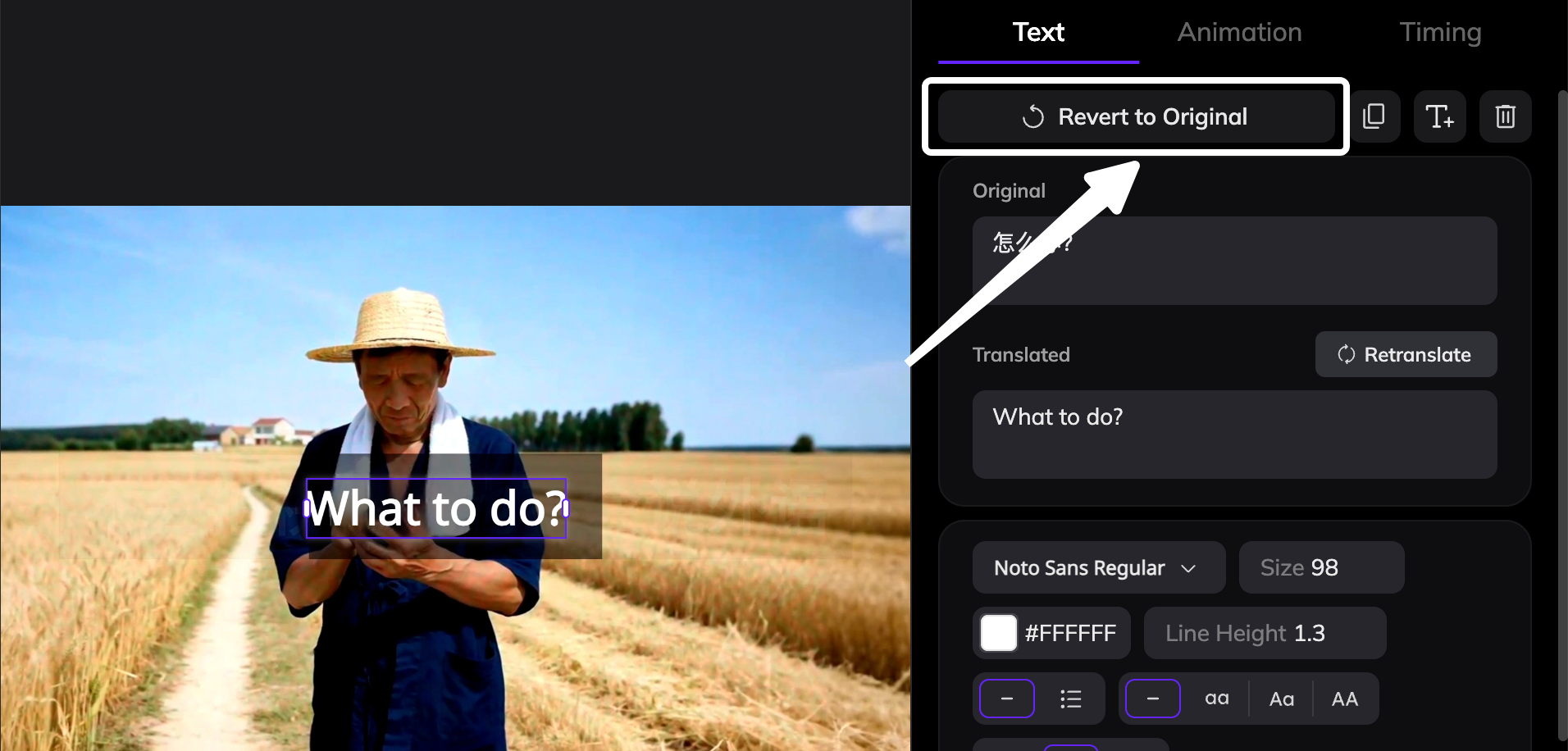
3
Confirm the Revert Area
After clicking the button, the selected area will be highlighted with a frame, indicating it has been marked to revert.
4
Regenerate the Video
After reviewing the entire video and marking all areas that should be reverted, click Regenerate Video at the bottom of the editor and wait for the video to finish regenerating.